
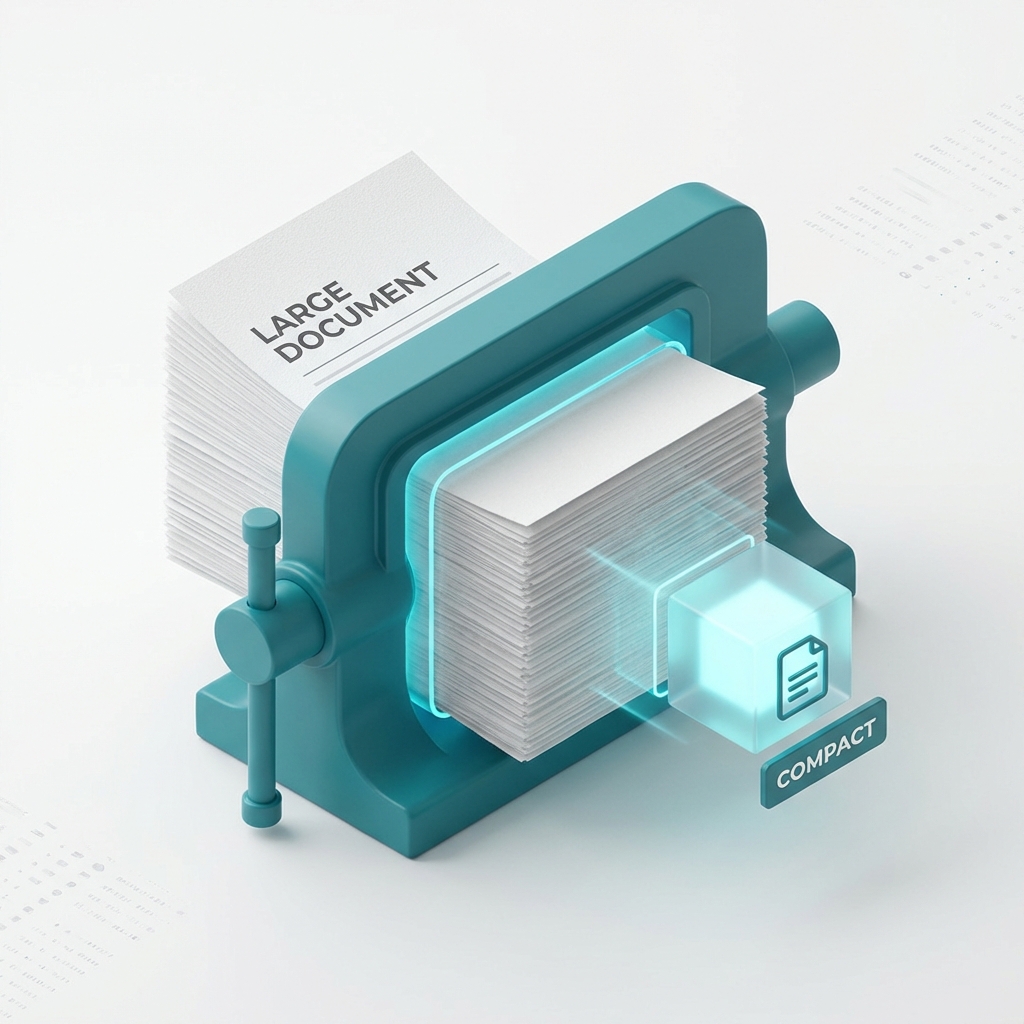
Compress PDF for Email: Hit Size Limits Without Turning Text to Mush
You hit Send. Gmail bounces back: attachment too large. You already renamed the file
FINAL_smaller.pdfCompression is the boring fix that actually works—if you know what it is doing to your file.
Limits you will actually hit
Gmail and Google Workspace: about 25 MB for the whole message, attachments plus body. Many Outlook setups cap around 10–20 MB depending on IT. University and job portals love 2 MB, 5 MB, 10 MB caps—check the error page instead of guessing. WhatsApp allows bigger files but nobody wants to download 40 MB on mobile data.
If you merged ten phone scans into one 45 MB packet, email is not the right channel until you shrink it—or you share a drive link and keep the fat original elsewhere. For normal email, I aim under 15–20 MB when I can so I am not flirting with the ceiling.
Corporate Exchange servers sometimes block before Gmail's limit even kicks in. When in doubt, compress once on Balanced and check the new size in the tool before you write the email body.
What compression changes (plain English)
A dumb compressor smears every image until the file is small and ugly. A smarter pass does a few different things.
It strips junk metadata—old print settings, software breadcrumbs—you never see anyway. It repacks how the PDF stores objects internally. It downsamples photos that were saved at absurd resolution for how small they appear on the page. It can subset fonts so unused characters leave the file.
What should stay sharp: body text, numbers in tables, anything someone will squint at and read. What can shrink: giant embedded photos of scans that were taken two inches from the phone.
No honest tool promises "90% smaller every time." A text-only invoice might drop a few percent. A scan-heavy packet can drop a lot. MyPocketPDF Compress PDF shows before and after size—use that number instead of hope.
Which level to pick
High quality when you are close to the limit and care about photos—design PDFs, portfolios, CVs.
Balanced for most email and portal uploads. Start here.
Smallest file when a site screams about 2 MB and Balanced was not enough. Open the result. If faces or charts look bad, back off—fix the source image instead of crushing the PDF again.
Keep the original somewhere safe. Image compression is not something you undo later.
Running compress three times on Smallest file is not a strategy. The second pass often saves almost nothing and just adds blur. Fix the source photo or remove appendix pages instead.
Order of operations (this saves arguments)
Finish the document first—edit, merge, Word to PDF, scan. Fix rotation and blank pages. Then compress for the channel you will use. Then password-protect if needed—encrypting a 40 MB monster still gives you a 40 MB monster.
People merge ten uncompressed scans, try to email, fail, compress in panic, wonder why quality died. Merge → compress → send. Same order every time.
Resume rejected for file size
Canva and big photo headers do this constantly. Export or convert to PDF. Compress on recommended. Still over 2 MB? Try extreme once and actually look at the headshot. If it turned to mush, put a smaller photo in the source file and convert again instead of running extreme three times.
ATS portals rarely tell you the exact cap. Two MB is a safe planning number for conservative sites. Five MB covers most others. When you have no number, recommended compression plus a quick open-on-phone check beats guessing.
Landlord or visa packet with ID scans
Phone scans are heavy. Better light at capture helps—see Cam Scan. Merge the packet in the right order first (merge guide), then compress. Readable ID numbers matter more than pristine gallery quality.
Do not compress before merge when you still might reorder pages. Get the packet right, then shrink once.
Client report with charts
Charts are often flat images inside the PDF. They behave differently from text. Try recommended; if charts blur, compress less aggressively and remove junk appendix pages instead.
Vector text in the body usually survives fine. It is the screenshot of a dashboard pasted as a 4000-wide PNG that dies first under extreme compression.
Searchable text and OCR
If the PDF already has a text layer, decent compression should keep it searchable. If you scanned paper to images, run OCR before aggressive compression when you need copy-paste text—OCR on blurry pages is miserable.
Myths
"Free compressors are always trash." Some are. Open the output. Can you read the numbers?
"I will uncompress later." Not really. Keep the original.
"Smaller always looks worse." Metadata-only passes can shrink with zero visible change.
"ZIP the PDF first." Zipping a PDF rarely helps much; PDFs are already compressed internally. You need a PDF-aware pass, not WinRAR hope.
When email still fails after compress
You might be under the attachment cap but over the total message size because the email body has huge inline images. Plain text body, compress the PDF, try again. Or upload to Drive or Dropbox and send a link—the recipient often prefers that for 30-page scan packets anyway.
Printing vs emailing
Compression tuned for email is not always what you want for print. If you are sending a proof to a print shop, keep the original high-res file and only compress the email copy you attach to the approval thread. Two files, two purposes. Less confusion than one mushy PDF everyone treats as canonical.
Freelancer invoice that will not send
Invoice PDF from Word or Canva, 8 MB, Outlook blocks at 10 MB total with your signature block and logo inline in the email. Compress the invoice on recommended—often drops enough without touching the logo. Still stuck? Remove the four-page appendix nobody reads, or split: invoice now, appendix link later.
Before/after habit
I keep the uncompressed original in a folder called
archiveScanned textbooks and handouts
Students merge chapter scans into one study packet, then wonder why compression nuked the diagrams. Text survives; gray-scale pencil diagrams do not love extreme mode. Try recommended, drop blank pages between chapters with Remove Pages, and only then consider extreme.
Portal upload that shows no error detail
You only see "failed." Compress on recommended, note the new size in the filename (
report-4mb.pdfCompress now
Related: merge before you shrink, Word to PDF, sign and protect before sending sensitive stuff.
Try the free tool
Related guides
- Introducing MyPocketPDF: Why It's the #1 Free PDF Toolkit in 2026
Experience the next generation of document management. MyPocketPDF is a sleek, intelligent suite designed for the modern digital era.