
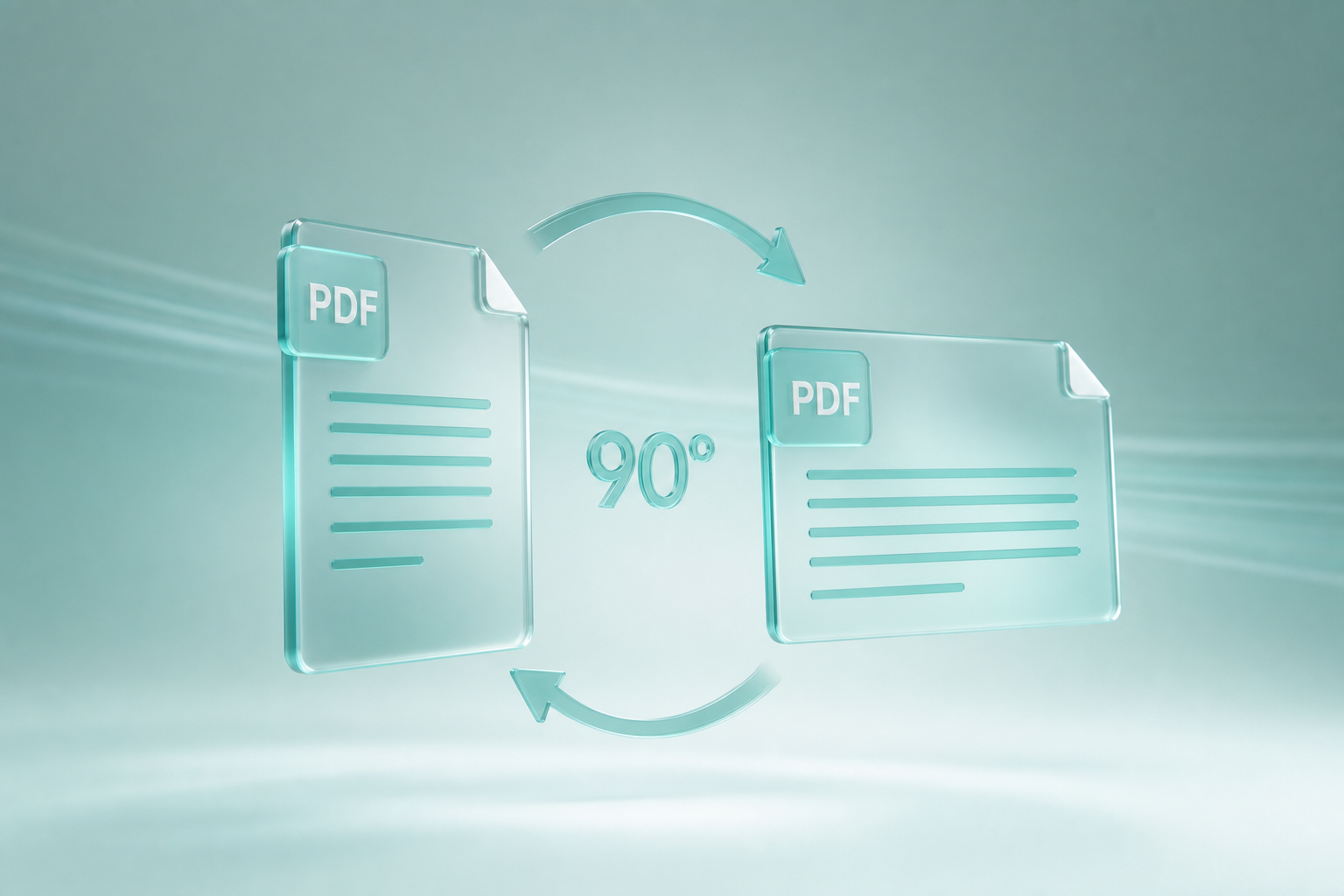
How to Rotate a PDF Online Free (Fix Upside-Down Pages)
You scan a stack of papers. Half the pages land sideways. Or a phone PDF arrives upside down. You open it on a laptop and tilt your head like you are reading a street sign in the rain. Printing that file wastes paper—and your patience.
Searches for how to rotate a pdf, rotate pdf online, and rotate pdf pages mean one job: make every page right-side up. This guide shows how to rotate a PDF online free with MyPocketPDF, when to rotate vs organize, how to handle mixed packets, and how to avoid rotating the wrong pages before you merge or print.
Why Rotate a PDF?
- Phone and scanner mistakes — documents flipped during capture.
- Mixed orientation packets — some pages portrait, some landscape that should match.
- Print readiness — fix orientation before you send to a printer queue.
- Clean merges — rotate before Merge PDF so the combined file reads in order.
- Client professionalism — sending a sideways contract looks careless even when the content is perfect.
- OCR accuracy — searchable text and Word conversion work better on upright pages; see OCR PDF.
If pages are in the wrong sequence (page 5 before page 2), use Organize PDF instead of rotate. Rotation fixes angle. Organize fixes order.
Rotate vs Organize vs Split vs Remove
| Problem | Tool |
|---|---|
| Page is sideways / upside down | Rotate PDF |
| Pages are in the wrong order | Organize PDF |
| You only need some pages as a new file | Split PDF |
| You want to delete unwanted pages | Remove Pages |
Getting this choice right saves you from “fixing” a file three times and still ending up with the wrong packet.
The 3-Step Guide: Rotate PDF on MyPocketPDF
Step 1: Upload the PDF
Open Rotate PDF. Drag in your file or browse to select it.
- Unlock first if the PDF is password-protected (Unlock PDF).
- Rotation for this tool is built to run privately in your browser session.
- Work on a copy when the file is important—name it
so the original stays safe.report-to-rotate.pdf
Step 2: Choose Rotation Direction
Typical options:
- 90° clockwise — common fix for sideways scans
- 90° counter-clockwise — the other sideways case
- 180° — upside-down pages
Apply to all pages when the whole scan is wrong, or follow on-screen controls if you only need selected pages. Use a page with a clear header or logo as your compass—if the header is on the bottom, you likely need 180°.
Step 3: Preview Mindset and Download
After rotating, skim the first, middle, and last pages. Confirm text runs left-to-right the way you expect. Download the corrected PDF and rename it—
report-rotated.pdfOpen the download in a second viewer if possible. What looks fine in one preview can still surprise you in print dialogs.
Pro Tips for Clean Rotation
1. Rotate Before You Number or Watermark
Add page numbers or watermarks after orientation is fixed—otherwise marks may sit in odd places relative to the text.
2. Fix Orientation Before Merge
Merging five sideways scans creates one sideways packet. Rotate each source (or rotate the merged file once if every page needs the same turn). Preview-first merging is covered in our merge with drag reorder guide.
3. Keep the Original
Scanner apps sometimes auto-rotate on a second pass. Keep a backup until you confirm the new file on the device you will actually print from.
4. Compress After Heavy Scans
Rotation does not shrink file size. Use Compress PDF if email still rejects the attachment.
5. Mixed Packets
If only pages 3 and 7 are wrong, prefer a tool flow that targets those pages—or split those pages out, rotate, and merge back. Blindly rotating the whole file can make the good pages wrong.
6. OCR and Convert After Upright Pages
If your next step is searchable text or Word, rotate first. Engines read upright text more reliably.
Before You Rotate: Quick Checklist
- Confirm whether every page is wrong or only a few.
- Decide 90° vs 180° by looking at a page with clear text (headers are an easy tell).
- Unlock the file if a password blocks processing.
- Save a backup copy named
.original-before-rotate.pdf - Plan the next step—merge, compress, or print—so you do not re-rotate twice.
- If you will print, test one page on the actual printer settings you will use.
Real-World Use Cases
- Classroom worksheets scanned in landscape by mistake
- Signed contracts photographed upside down on a phone
- Shipping labels that must print in a specific orientation
- Board decks exported with one slide rotated incorrectly
- Multi-page mail scans where the feeder flipped every other sheet
- Architecture plans that must be landscape for plotter printing
- Medical or school forms scanned on a phone in a hurry
When in doubt, rotate a copy, open it beside the original, and compare page 1 side by side before you delete anything.
Why MyPocketPDF for Rotate PDF Online?
- Free rotation without Acrobat
- No account required for core use
- Fast browser workflow next to organize, merge, and compress
- No watermark on standard outputs
- Mobile-friendly when the bad PDF is still on your phone
Desktop “print to PDF” tricks and screenshot workarounds exist—but they often change page size, crop margins, or create a second low-quality file. A dedicated rotate tool keeps the document structure intact while fixing orientation.
90° vs 180°: A Simple Rule of Thumb
- If the page looks like a normal document turned on its side, start with 90°.
- If headers are at the bottom and footers are at the top, use 180°.
- If you are unsure, rotate a copy once, check page 1, and only then apply the same turn to the full file.
People often rotate three times in a hurry and still end up wrong. One careful preview beats five blind clicks.
After Rotation: What to Do Next
- Merge related upright files with Merge PDF
- Number pages only after orientation is final
- OCR scanned packets once they are upright
- Compress if email still complains about size
- Protect sensitive packets before sending
Treat rotation as step one in a packet-cleanup pipeline—not an isolated chore.
When Rotation Will Not Help
Rotation will not fix:
- Cropped content cut off at the edges
- Blurry phone photos
- Wrong page order
- Missing pages
Those need crop/repair, better capture, organize, or split/remove—not another 90° turn. Knowing when not to rotate saves time.
Troubleshooting
- Still sideways after download: You may have rotated the wrong direction—try 90° the other way or 180°.
- Only some pages wrong: Do not rotate all pages; isolate those pages with split/organize workflows.
- Tool will not open the file: Unlock or repair the PDF first.
- Print still looks wrong: Check printer settings (auto-rotate/landscape) as well as the PDF itself.
- Thumbnails look correct but print is not: Some printers ignore PDF rotation flags—reprint with “auto portrait/landscape” disabled to test.
- One page flipped again after email: The recipient may have opened an older attachment—confirm the filename and date of the file you sent.
Security and Privacy
Orientation fixes often happen on ID scans and mail. Prefer a private, browser-oriented tool and delete leftovers from Downloads when finished. See our Privacy Policy.
Frequently Asked Questions (FAQ)
How do I rotate a PDF for free online?
Go to Rotate PDF, upload, choose 90° or 180°, and download the corrected file.
Can I rotate just one page?
Yes when the UI supports per-page or selection controls; otherwise split that page, rotate, and merge back.
Does rotation reduce quality?
No—you are changing orientation, not recompressing images (unless you compress separately).
Will this work on mobile?
Yes, in a modern mobile browser—handy for phone-captured PDFs.
Is rotate the same as organize?
No. Rotate fixes angle. Organize fixes order and page arrangement.
Should I rotate before or after adding page numbers?
Before. Numbering and watermarks should sit relative to the final upright layout.
Why do some pages still look wrong after a 90° turn?
They may have needed 180°, or only a subset of pages was wrong. Inspect page 1 and a middle page before you commit.
Can rotation fix a PDF that is landscape on purpose?
Only rotate when the content is wrong—not when a wide spreadsheet or slide is intentionally landscape. If the text reads correctly left-to-right, leave it alone.
Will email “auto fix” orientation for recipients?
Do not count on it. Fix the file yourself so every viewer and printer sees the same upright pages.
Conclusion: Right-Side Up in Seconds
Stop reprinting crooked scans. Rotate once, verify a few pages, then merge, OCR, or send with confidence.
Next: Organize PDF pages if order is wrong, Remove Pages if you need to delete sheets, or Merge PDFs after everything faces the right way.
Try the free tool
Related guides
- How to Fill a PDF Form Online Free (Fillable Fields Step-by-Step)
Fill a PDF form online free—click real fillable fields, use Tab, complete checkboxes and dropdowns, then download. No Acrobat. Works for leases, HR forms, and school paperwork.
- How to Fill and Sign a PDF Without Adobe Acrobat (Free Online)
Fill and sign a PDF without Adobe Acrobat—complete fillable fields or stamp flat pages, add a signature, and download free in your browser. No Creative Cloud subscription.
- How to Fill a PDF Form on Your Phone (iPhone & Android)
Fill a PDF form on iPhone or Android free—complete fillable fields or stamp text, add a signature with your finger, and download. No desktop required.
- How to Convert PDF to JPG Free Online (Pages to Images)
Convert every PDF page into JPG images free—no software. Full step-by-step for sharing slides, posting pages online, and extracting visuals, plus quality tips, workflows, and FAQs.