
How to Edit PDF Text Online: The Easy (and Free) Way
Editing a PDF used to require a $200 software suite, a powerful desktop computer, and a 30-minute installation process. In 2026, the paradigm has shifted. Today, professional-grade document editing requires nothing more than a standard web browser and MyPocketPDF.
Whether you need to fix a critical typo in a presentation, fill out a complex government form that isn't "interactive," add your professional signature to a high-stakes contract, or redact sensitive financial information before sending a file, our Online PDF Editor is engineered for speed, security, and precision.
In this exhaustive guide, we'll demonstrate how to master the MyPocketPDF editor, explore its advanced features, and explain why browser-based editing is the new standard for modern professionals.
The Myths of PDF Editing
Before we jump into the "how-to," let's dispel some common misconceptions:
- "PDFs are Read-Only": While the format was designed to be final, modern tools like MyPocketPDF can "unlock" the layer of text and images, allowing for deep manipulation.
- "Online Editors are Unsafe": Many legacy users fear that uploading a file to a browser means giving up privacy. On MyPocketPDF, your edits happen in a highly secure, encrypted session, and files are purged immediately. Learn more in our Privacy and Protection article.
- "You Need Adobe for Professional Results": MyPocketPDF's editor handles 99% of common business editing tasks—text changes, image adding, and annotations—at a fraction of the weight and zero cost.
Core Features You Can Master Today
1. Direct Text Editing
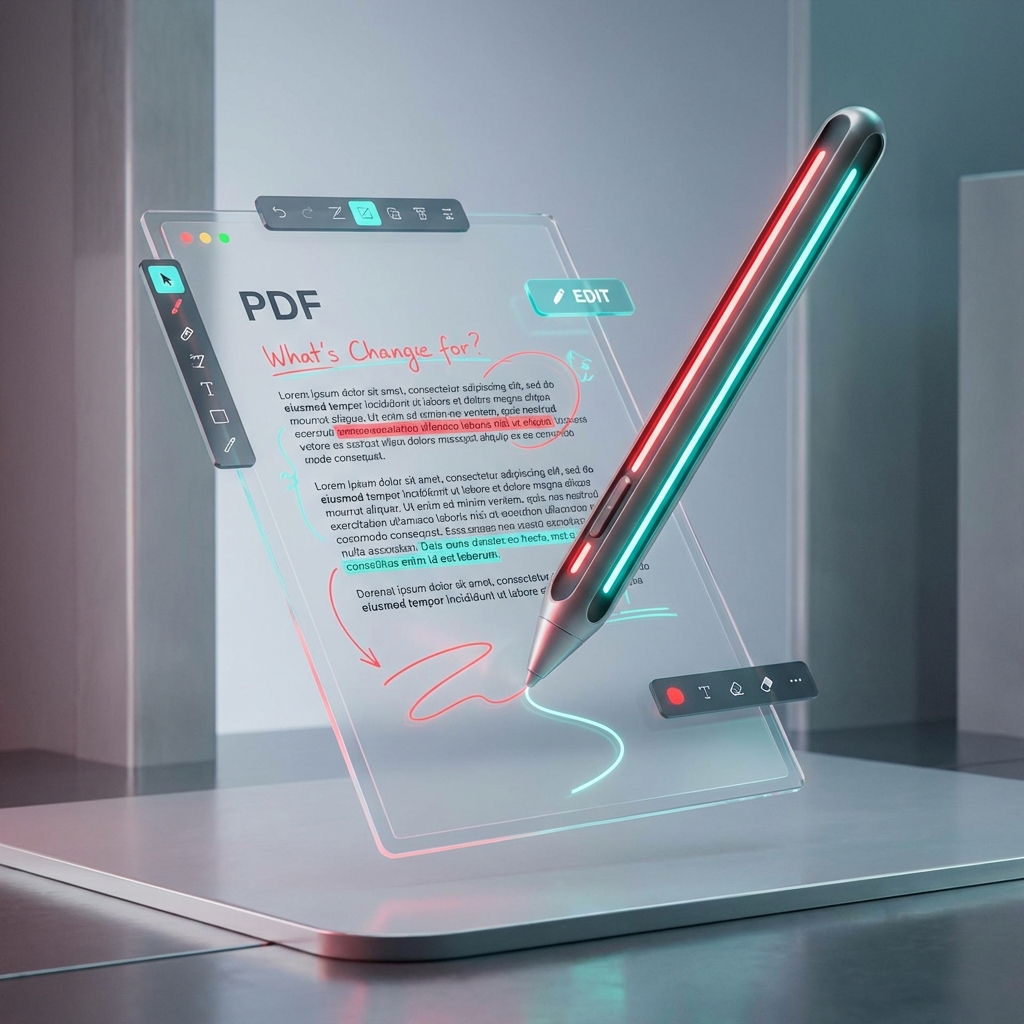
Unlike simple "annotation" tools that just let you draw over a PDF, MyPocketPDF allows you to click and type.
- Matching Styles: You can choose fonts, sizes, and colors that match the existing document so your edits look seamless.
- Filling Forms: If you have an old scan of a form, you can simply click on the lines and type your answers. No more printing and handwriting.
2. Image and Graphic Manipulation
Need to add a company logo to a report or a screenshot to a manual?
- Drag & Drop: Just upload the image and drag it into position.
- Resizing: Use our intuitive corner handles to scale your images perfectly.
- Logos & Icons: We support all major image formats (JPG, PNG, SVG) within the editor.
3. Annotation and Feedback
If you're reviewing a team member's work, our Annotate PDF Tool is your best friend.
- Highlighting: Use the highlighter to call out key sections.
- Drawing: Circle errors or draw arrows to indicate where things should move.
- Shapes: Use squares and circles to frame important data points.
4. Redaction and Whiteout
Privacy is paramount. If you have a bank statement, an ID scan, or a medical record that needs some "cleaning" before it's sent:
- The "Digital Sharpie": Use our shape tool with a solid white or black fill to cover sensitive numbers or names.
- Irreversible: Unlike some basic tools that just put a layer over the text, MyPocketPDF's flattening process makes redactions permanent.
5 Steps to Your First Edit
- Upload: Visit the Online PDF Editor and drop your file.
- Choose Your Tool: From the top toolbar, select Text, Image, or Shape.
- Apply Your Edits: Click on the page to start typing or drawing.
- Preview: Scroll through your pages to ensure all changes are exactly where you want them.
- Export: Click the "Finish/Download" button. Our engine will rebuild the PDF with your changes integrated into the file.
Advanced Use Cases for the MyPocketPDF Editor
For Real Estate Professionals
Quickly add "Initial Here" boxes, update dates on contracts, and insert scanned signatures into closing documents without ever touching a printer. Combined with nuestro Sign PDF tool, it's a complete paperless office.
For Academic Reviewers
Mark up student papers or journal submissions with clear, color-coded notes. Use the Merge PDF tool to combine their paper with your feedback rubric before sending it back.
For Small Businesses
Update price lists, seasonal menus, or contact information on your marketing brochures without having to go back to a designer for every small change.
Connectivity: The Full Document Lifecycle
Editing is often just one part of a larger workflow. Once you've edited your document, you might need to:
- Secure It: Add a password with our Protect PDF Tool.
- Shrink It: If you've added many images, use the Compress PDF Tool to ensure it's small enough for email.
- Convert It: Need to turn that flyer into a Word doc for a teammate? Head to our PDF to Word Converter.
Why Trust MyPocketPDF for Your Edits?
Since your edits happen entirely within our secure, ad-free ecosystem, you don't have to worry about third-party plugins, shady browser extensions, or "cookies" tracking your document content. We provide a clean, professional environment where you can focus on your work. Our commitment to privacy is why we are the #1 choice for professionals in 2026.
Conclusion: Take Control of Your Documents
Don't let a "static" PDF slow you down. With MyPocketPDF, every document is a living, editable asset. Start your first edit today and see how much faster your workflow can be.
Looking for even more ways to manage your files? Check out our Ultimate Guide to Merging PDFs or learn why MyPocketPDF is the #1 tool of 2026.
Try the free tool
Related guides
- How to Rotate a PDF Online Free (Fix Upside-Down Pages)
Rotate PDF pages online free—fix sideways scans and upside-down pages in seconds. Full how-to for all pages or selected pages, plus print tips, workflows, and FAQs.
- How to Password Protect a PDF Free Online (Lock Before You Send)
Add a password to any PDF free online. Full protect workflow, open vs permissions explained simply, sharing tips, mistakes to avoid, and FAQs.
- How to Unlock a PDF Online Free (Remove Password the Right Way)
Remove a PDF password online when you know it—free, step-by-step. Learn unlock vs protect, owner vs open passwords, and what to do before merge, edit, or convert.