
The Ultimate Guide to Accurate PDF to Word Conversion For Free
We've all been there: You receive a PDF contract or report that needs a few "quick edits," but you can't click on a single word. You end up spending hours retyping the text into a Word document and trying to fix the broken tables and images. It's a frustrating, high-friction experience that slows down business and kills productivity.
There is a better way.
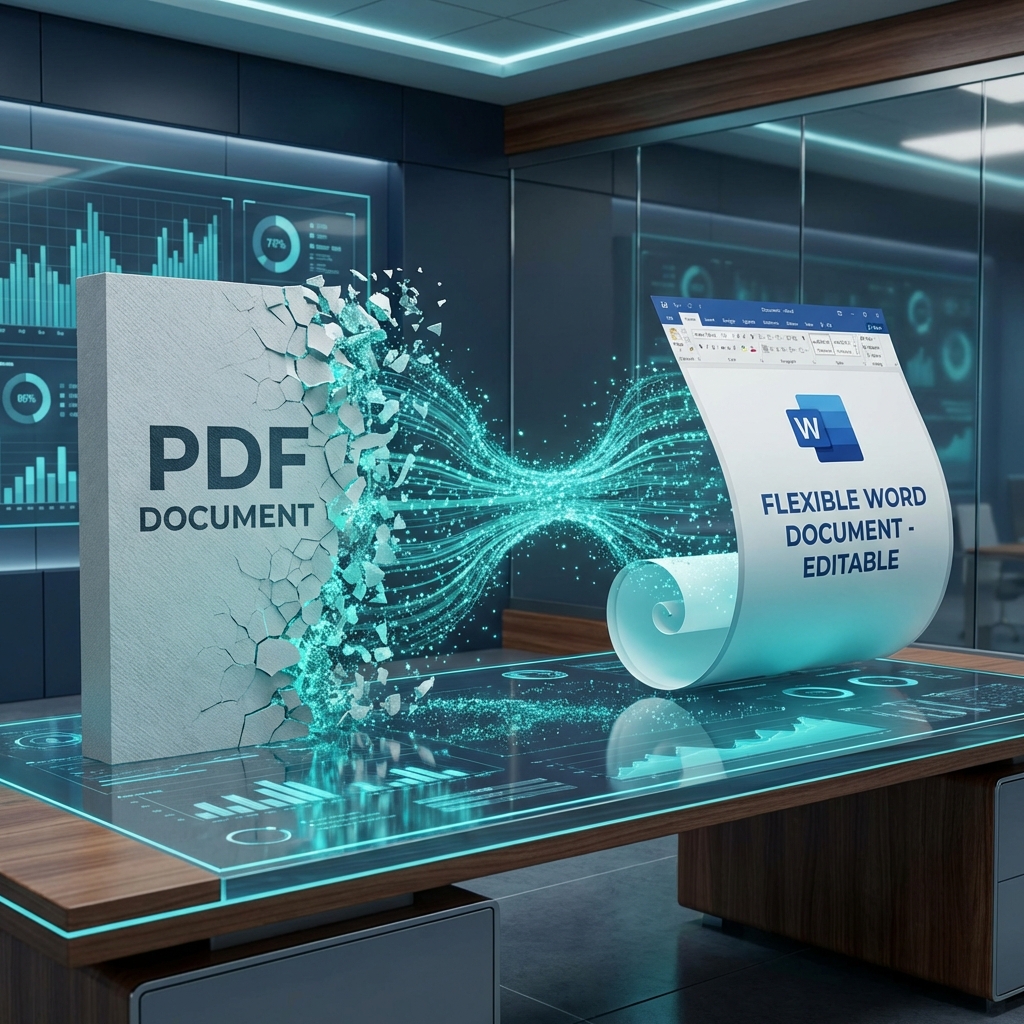
The MyPocketPDF PDF to Word Converter is engineered to do more than just "scrape" text. It uses complex layout analysis, semantic document structure recognition, and AI-driven font matching to understand where your headers, paragraphs, and tables are—translating them into a clean, editable
.docxWhy Reliable Conversion is a Business Necessity
In the modern enterprise, documents are the currency of information. However, the PDF format was designed for output, not input. It lacks a native sense of flowing text or table structures. When a standard "free converter" attempts to turn a PDF into Word, it often results in a "text soup"—words mashed together with no spaces, broken lines, and images that float randomly over the header.
For professionals in legal, finance, and academia, this isn't just an annoyance; it's a risk. A misaligned table in a financial report or a missing comma in a contract can have significant consequences. That's why MyPocketPDF focuses on Structural Accuracy.
The Technology Behind the Magic: How We Convert
Unlike basic converters that use simple OCR (Optical Character Recognition) on every page, MyPocketPDF uses a multi-layered approach:
1. Vector Extraction
For "native" PDFs (those created from Word, Excel, or CAD), our engine extracts the vector data directly. This ensures that the text remains 100% accurate without any OCR "guessing" errors.
2. Semantic Layout Analysis
Our AI analyzes the visual arrangement of elements. It identifies what is a header versus what is a footer. It detects bulleted lists and turns them into native bullet objects in Word, rather than just placing a dot character next to text.
3. Progressive Table Reconstruction
Tables are the hardest part of any conversion. MyPocketPDF identifies the cell boundaries and reconstructs the table using native Microsoft Word table objects. This means you can add rows, change column widths, and edit cell data as if you built the table in Word from scratch.
4. Font Matching and Styling
We analyze the spacing, kerning, and styling of your document. If we don't have the exact font, we use a sophisticated fallback system to find the nearest metric-compatible font, ensuring your layout doesn't "jump" or overflow.
Step-by-Step: How to Convert Your PDF Today
Using our PDF to Word Converter is a frictionless three-step process:
- Upload: Open the tool and drop your PDF into the processing area. You can also upload from your mobile device or tablet.
- Convert: Click the "Convert to Word" button. Our engine will start its semantic analysis immediately.
- Download & Edit: Once the process is finished (usually in 5-10 seconds), download your
file. You can now open it in Word, Google Docs, or Pages and start editing..docx
Common Myths About PDF Conversion
Myth 1: You Have to Pay for Quality
For years, Adobe Acrobat was the only reliable way to convert PDFs. People assumed "free" meant "low quality." In 2026, MyPocketPDF has broken that myth. Our web-based engine often outperforms enterprise software because it is updated weekly with the latest AI models.
Myth 2: Scanned PDFs Can't Be Converted
False. While simple converters fail on scanned images, our integrated OCR technology can "read" the text from the image and then apply our conversion engine to build the Word doc. If your file is a scan, we recommend using our searchable PDF tool first for the best results.
Myth 3: Conversion Always Breaks Formatting
While 100% perfection is a high bar, MyPocketPDF achieves near-pixel-perfect results for 95% of standard business documents. For extremely complex magazine-style layouts, you might need 5 minutes of minor tweaks, but hours of retyping are gone forever.
Use Cases for PDF to Word Conversion
- Contract Negotiation: Convert a PDF contract to Word so you can "Track Changes" and send back a redline version.
- Repurposing Reports: Take data from an old PDF report and pull it into a new Word document without losing the table formatting.
- Resume Updates: If you've lost the original Word file for your resume, convert the PDF back to Word to make quick experience updates.
- Academic Research: Easily quote and cite text from PDF journals by converting them to a more flexible format.
Connectivity: What Else Can You Do?
Once you've finished your edits in Word, you might want to turn it back into a PDF for final distribution. We've got you covered with our Word to PDF Converter.
Additionally, if your converted document contains high-res images that make the file size explode, use our Compress PDF Tool before emailing it. You can read more about file size management in our guide to PDF compression.
Frequently Asked Questions (FAQ)
Is there a limit to how many files I can convert?
No. MyPocketPDF is built for high-volume productivity. Whether you have 1 file or 100, our system will process them with the same level of care.
How do you handle my data?
Security is our foundation. Every converted file is encrypted during the process and is permanently deleted from our servers once your session expires. We do not peek at your data, and we do not store copies. For more on our security protocols, see our privacy and protection guide.
Will it work with Excel and PowerPoint too?
Yes! While this guide focuses on Word, we also offer PDF to PowerPoint and other converters on our tools homepage.
Conclusion: Stop Retyping, Start Converting
Your time is valuable. Don't waste it on manual data entry or fixing broken layouts. MyPocketPDF provides the professional-grade tools you need to move your workflow forward.
Need to fix a quick typo without converting the whole file? Try our Online PDF Editor instead.
Try the free tool
Related guides
- How to Convert Word to PDF Online Free (DOC & DOCX Guide)
Turn Word documents into PDF in seconds. Free online Word to PDF converter for .doc and .docx—no Microsoft Office required, no watermarks.
- How to Convert PDF to JPG Free Online (Pages to Images)
Convert every PDF page into JPG images free—no software. Full step-by-step for sharing slides, posting pages online, and extracting visuals, plus quality tips, workflows, and FAQs.
- How to Convert PDF to Word Free Online (Step-by-Step Guide)
Convert a PDF to an editable Word document free—no software install. Step-by-step for resumes, contracts, and scanned files, plus tips to keep tables and formatting intact.
- How to Convert Excel to PDF Free Online (XLS & XLSX Guide)
Turn Excel spreadsheets into PDF free—keep tables readable for email, printing, and portals. Step-by-step for invoices, reports, and financial sheets.