
How to Make a PDF Searchable with OCR (Free Online Guide)
You open a scanned PDF and press Ctrl+F. Nothing. You try to highlight a sentence. The whole page selects like a photo—because it is a photo of text. Finding one invoice number means scrolling page by page like it is 1998.
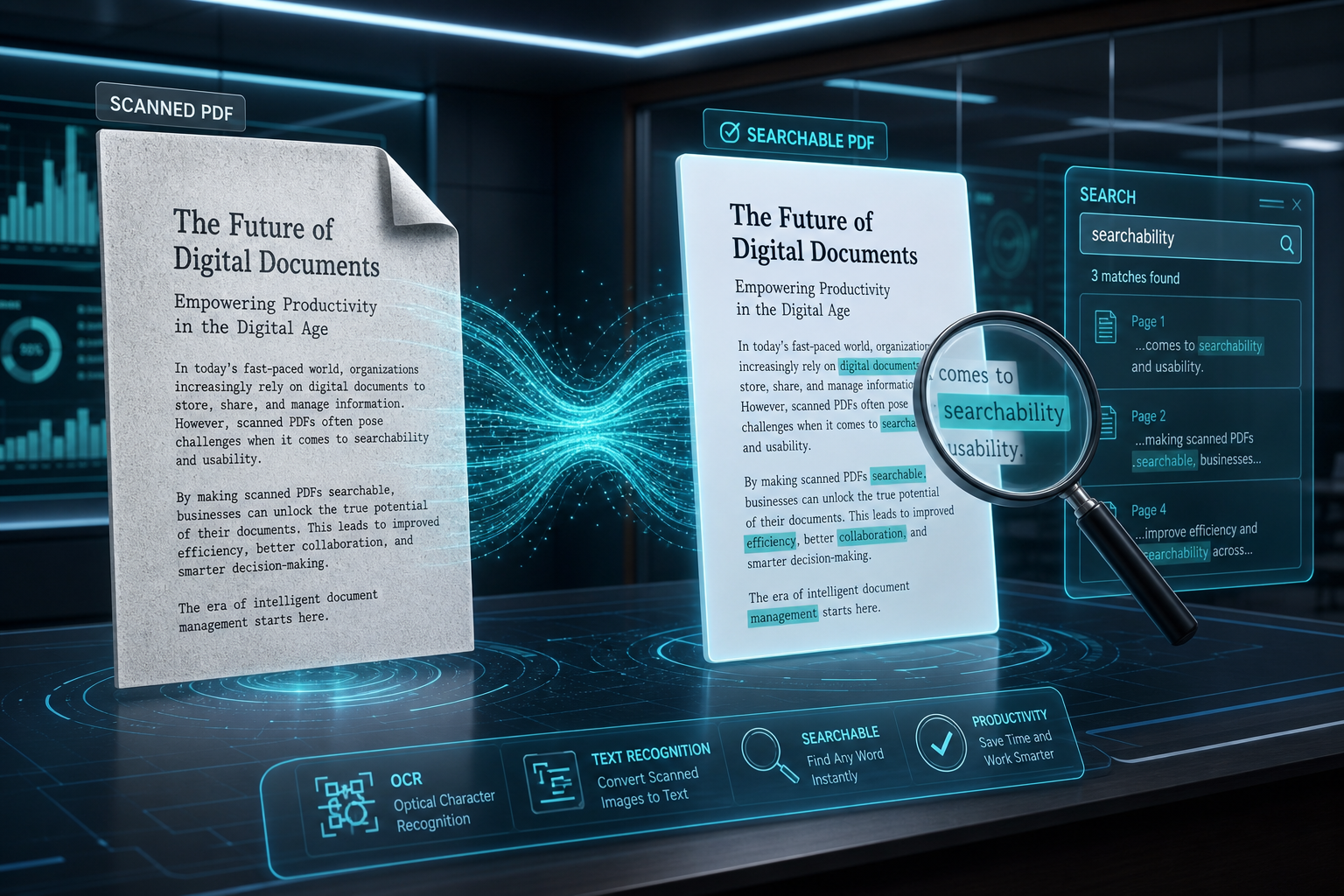
Searches for how to make a pdf searchable, ocr pdf, and searchable pdf mean: add a text layer so I can find and copy words. This guide shows how to run OCR on a PDF free online with MyPocketPDF, when OCR helps, how to improve scan quality, and what to do after for Word conversion or archiving.
What OCR Does (Plain English)
OCR (Optical Character Recognition) reads the shapes of letters in an image and stores them as text inside the PDF. After OCR you can usually:
- Search for names, invoice numbers, or keywords
- Copy and paste text into email or Word
- Get better results from PDF to Word
- Build archives you can actually query later
OCR does not magically fix a blurry photo. Garbage scan in → garbage text out. Think of OCR as a careful reader—not a miracle worker.
When You Need OCR
- Phone scans and flatbed scans of paper contracts
- Faxed or photographed pages saved as PDF
- Image-only exports from some scanners
- Archives you want to search later
- Whiteboard or printed handout photos turned into PDFs
- Legacy paperwork digitized for tax, legal, or school records
Skip OCR if you can already select text with your mouse—the PDF is already text-based. Running OCR again on a clean digital PDF usually wastes time.
How to Tell If Your PDF Needs OCR
Try this 10-second test:
- Open the PDF.
- Click and drag over a paragraph.
- If you can highlight individual words, you probably do not need OCR.
- If the whole page behaves like one image, you do.
Another clue: search for a word you can clearly see on page 1. If search finds nothing, the text layer is missing.
OCR vs PDF to Word vs Edit PDF
| Goal | Tool |
|---|---|
| Keep a PDF but make text searchable | OCR PDF |
| Get an editable Word file | PDF to Word (OCR first if scanned) |
| Fix a small typo on a digital PDF | PDF Editor |
| Turn pages into images for social | PDF to JPG |
Use OCR when you want to keep the PDF and make it findable. Use Word conversion when you need to rewrite the document.
The 3-Step Guide: OCR PDF on MyPocketPDF
Step 1: Prep a Readable Scan
Before uploading:
- Pages should be straight, not heavily skewed (Rotate PDF if needed)
- Lighting should be even—avoid dark shadows on words
- Prefer 300 DPI-class scans when you control the scanner
- Crop out fingers, table edges, and huge empty borders when possible
- Remove blank junk pages with Remove Pages so OCR focuses on real content
Step 2: Upload to OCR PDF
Open OCR PDF. Upload your scanned PDF.
- Unlock first if needed (Unlock PDF).
- Larger files take longer—keep the tab open.
- For huge packets, split into chapters first, OCR each part, then Merge if you need one file again.
Step 3: Download and Test Search
Download the searchable PDF. Open it and try:
- Ctrl+F / Cmd+F for a word you can see on page 1
- Selecting a sentence and copying it
- Spot-checking numbers and names for OCR mistakes (0 vs O, 1 vs l)
- Searching a unique phrase from the middle of the document—not only the title
Pro Tips for Accurate OCR
1. One Language / Clean Layout Wins
Dense multi-column magazines and tiny footnotes fail more often than clean letters. Simple reports, invoices, and forms usually OCR best.
2. OCR Before PDF to Word
For scans, the reliable path is OCR → PDF to Word, not Word conversion alone. See How to Convert PDF to Word and the accurate conversion guide.
3. Proofread Critical Data
Never trust raw OCR for bank totals, dosage instructions, or legal clauses without a human check.
4. Compress After If Needed
OCR can increase size slightly. Use Compress PDF for email limits.
5. Protect Sensitive Searchable Files
Searchable text is easier to extract—Protect PDF before sending. A searchable ID packet is more dangerous if leaked than a locked image-only scan.
6. Fix Orientation First
Upside-down pages confuse recognition. Rotate, then OCR.
OCR Quality Checklist (Before You Hit Convert)
- Is the page straight enough to read with your eyes?
- Are letters sharp, not smeared from motion blur?
- Is contrast high (dark text on light paper)?
- Did you avoid cutting off margins where words live?
- Is this printed text rather than messy handwriting?
- Are stamps and signatures overlapping critical numbers?
If you answer “no” to several items, rescan first—OCR cannot invent clarity.
Real-World Use Cases
- Searching old paper contracts digitized as PDF
- Finding a tracking number inside a scanned shipping pack
- Making lecture notes searchable for study
- Preparing scans for conversion to Word resumes or reports
- Building a searchable archive of receipts for tax season
- Turning photographed whiteboard notes into findable project PDFs
- Digitized meeting minutes that leadership needs to search by topic
Teams that digitize paper weekly often OCR overnight batches, then store the searchable PDFs in labeled folders—future-you will thank present-you.
Why MyPocketPDF for OCR?
- Free online OCR path without buying desktop Acrobat
- Fits the conversion toolkit — OCR then Word, compress, protect
- No account required for core use
- Clear privacy policy for how tools handle files
- Practical companion tools for rotate, split, merge, and unlock in the same site
Searchable PDF vs Editable Word: Pick the Outcome
Ask one question before you start: Do I need to find text, or rewrite it?
- Find / copy / archive → OCR and keep PDF
- Rewrite clauses, tables, resumes → OCR first (if scanned), then PDF to Word
- Fix one typo on a digital PDF → PDF Editor may be enough
Choosing the wrong end state is how people waste an afternoon converting back and forth.
A Practical OCR Pipeline for Busy Teams
- Capture or receive the scan
- Rotate and remove blank junk pages
- OCR the clean packet
- Spot-check search on page 1 and a middle page
- Convert to Word only if edits are required
- Protect before external sharing
That pipeline scales from a single receipt to a weekly document intake process.
What “Good Enough” OCR Looks Like
Perfect OCR on every character is rare. Aim for:
- Search finds the main headings and names
- Copied sentences are mostly readable
- Critical numbers are manually verified
If those three are true, the document is already far more useful than a flat image scan.
Troubleshooting
- Search still finds nothing: File may not have finished OCR, or the scan is too blurry—rescan and retry.
- Gibberish text: Improve scan quality; skewed pages confuse engines.
- Need Word, not just search: After OCR, use PDF to Word.
- Only one bad page: Split that page, improve it, OCR, then merge back.
- Numbers look wrong in search hits: Manually verify financial or ID fields—never rely on OCR alone for critical digits.
- Handwriting looks nonsense: Expected—print OCR first; handwriting is unreliable.
- File got much larger: Compress after OCR if email rejects it.
Security and Privacy
OCR creates extractable text from images of sensitive documents. Treat searchable outputs carefully and lock them when sharing. See Privacy Policy and password protect guide.
Frequently Asked Questions (FAQ)
How do I make a PDF searchable for free?
Upload your scan to OCR PDF, run OCR, download, and test search.
Is OCR the same as converting to Word?
No. OCR keeps a PDF (with a text layer). Word conversion creates a
.docxDoes OCR work on handwritten notes?
Printed text works best. Messy handwriting is unreliable.
Can I OCR on mobile?
Yes, with a modern browser—though large scans are easier on desktop.
Will OCR change how the PDF looks?
Usually the visual page stays the same; a text layer is added underneath for search/copy.
Should I OCR before or after merging?
Either works, but many people OCR each source scan first, then merge—especially if scan quality differs by batch.
Why does search find the wrong word?
OCR confusion between similar characters is common. Improve scan quality and proofread critical matches.
Does OCR work offline forever after I download?
Once the searchable PDF is on your device, you can search it offline in most PDF readers. You do not need to stay on the website.
Can OCR help with scanned tables?
Sometimes. Clean, high-contrast tables do better than faint spreadsheet printouts. For heavy table editing, plan on PDF to Word or rebuilding key tables manually after OCR.
Conclusion: From Picture-of-Text to Findable PDF
Stop scrolling page by page. Prep a clean scan, OCR once, search forever—and convert to Word only when you need edits.
Make Your PDF Searchable Now →
Next: How to Convert PDF to Word after OCR, or the accurate conversion guide when layout quality matters. Sideways scan? Fix it with Rotate PDF first.
Try the free tool
Related guides
- How to Fill a PDF Form Online Free (Fillable Fields Step-by-Step)
Fill a PDF form online free—click real fillable fields, use Tab, complete checkboxes and dropdowns, then download. No Acrobat. Works for leases, HR forms, and school paperwork.
- How to Fill and Sign a PDF Without Adobe Acrobat (Free Online)
Fill and sign a PDF without Adobe Acrobat—complete fillable fields or stamp flat pages, add a signature, and download free in your browser. No Creative Cloud subscription.
- How to Fill a PDF Form on Your Phone (iPhone & Android)
Fill a PDF form on iPhone or Android free—complete fillable fields or stamp text, add a signature with your finger, and download. No desktop required.
- How to Convert PDF to JPG Free Online (Pages to Images)
Convert every PDF page into JPG images free—no software. Full step-by-step for sharing slides, posting pages online, and extracting visuals, plus quality tips, workflows, and FAQs.