
How to Scan a Document to PDF with Your Phone (Then Get It on PC)
Paper still exists. Leases, receipts, handwritten notes, the thing someone printed because "email is insecure." You need a PDF on the computer you actually use for email and filing—not five blurry JPGs in your camera roll.
That is what scan document to pdf really means. Not a pretty photo. One multi-page PDF you can attach, archive, or merge with other files.
Good scan vs bad scan
Bad: trapezoid page, shadow across half the signature, six separate JPEGs you hope the recipient reassembles. Good: straight edges, readable text, one PDF. Lighting beats megapixels most days. Put white paper on a dark desk, hold steady until the edge outline locks, then capture.
Cam Scan vs other paths
Physical paper in front of you plus an Android phone → Cam Scan with the QR handoff to PC. Photos already sitting in Downloads on the laptop → JPG to PDF. Need copy-paste text later → scan, then OCR PDF. Office flatbed available → use it, then merge or compress here if needed.
If the images already live on the computer, skip the QR dance. Wrong tool, wasted minutes.
QR loop step by step
On the computer: open one tab of Cam Scan. Leave it open. You should see a QR and "Waiting for phone." Second tab open? Pairing gets confused. I have done this to myself.
On Android: MyPocketPDF app → Cam Scan → Connect to PC → scan the QR. Wait until it says Connected. Scan your pages—adjust corners, use a filter if the page is gray or yellowed, finish. Tap Send to PC. The browser tab should show a preview; download and rename something useful like
lease-addendum-signed.pdfscan(1).pdfNo Android? The page can use browser camera or upload. Quality is usually better with the app edge detection, but a borrowed laptop still works.
Jobs people actually scan for
Receipts for expenses. One PDF per month. Compress if the portal is picky—compress guide.
Signed paper that still matters. Every inked page. Merge with digital exhibits using Merge PDF. Electronic signature on a different file? Sign PDF.
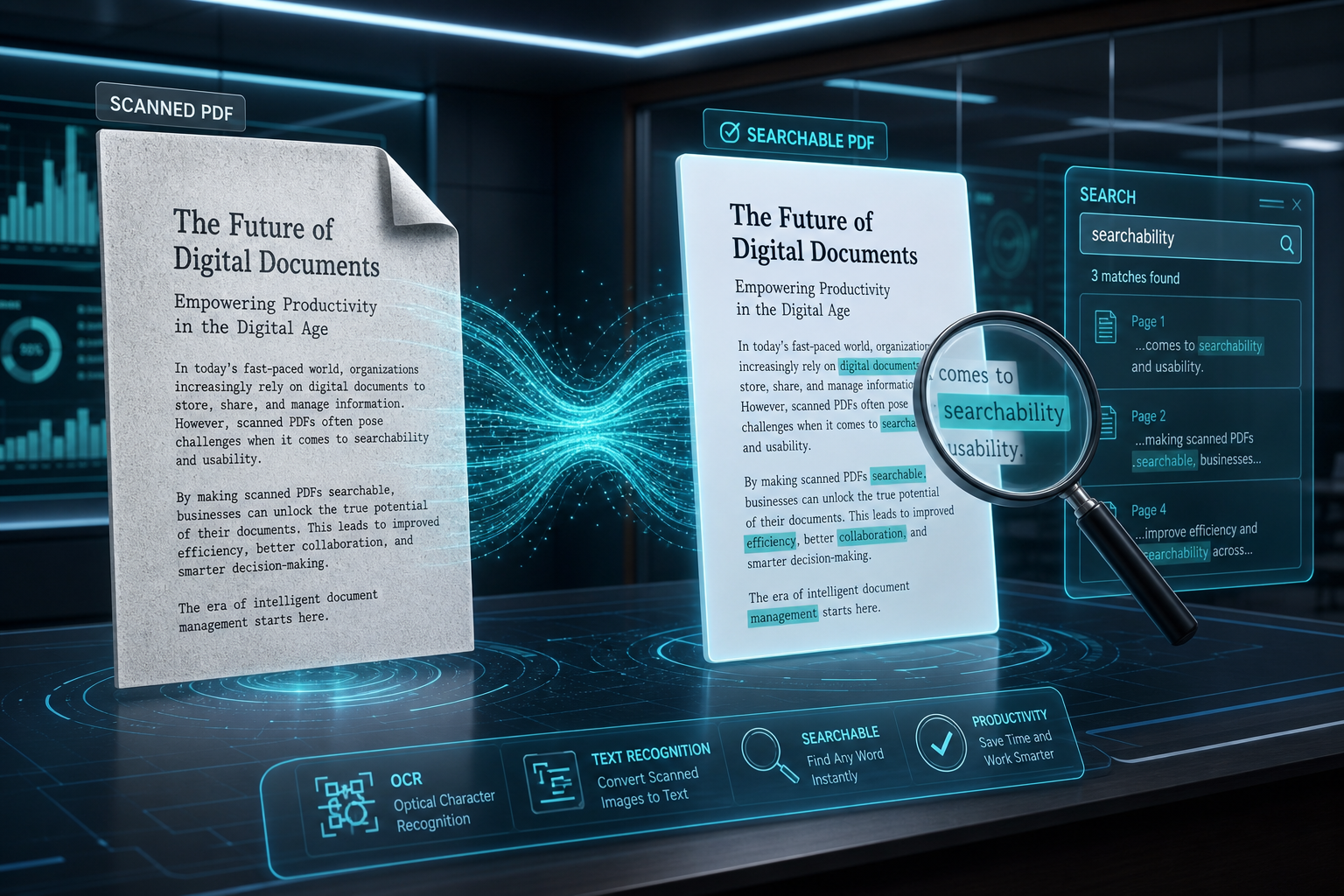
Homework and notes. Black-and-white filter for pencil. OCR if the teacher wants searchable text.
ID copies. Flat, even light. Think twice before emailing—Protect PDF if you must send it.
Whiteboard after a meeting. Stand square, enhance contrast, send to the folder you will actually check Monday.
Medical or insurance forms. Same rules: flat page, no shadow on the checkbox area. Multi-page? Capture in order; the app builds one PDF so you are not emailing page photos one by one.
Field tips that actually help
Shoot perpendicular to the page—not from the side like a casual Instagram story. Shadow from your hand is the usual killer on phone scans. If auto-detect keeps missing corners, tap manual crop and drag the handles yourself. Yellowed old paper? Try the enhance filter before you give up and use the blurry camera roll photo instead.
After the PDF lands on the PC
Searchable text → OCR. Combine with other files → Merge. Too big to email → Compress. Signature on the scan → Sign. Lock before sending → Protect. Heavy editing in Word → OCR first, then PDF to Word—expect cleanup.
Landlord packets often need scan + Word cover letter + merge. Do the scan first while the paper is in front of you, convert the letter, merge in portal order, compress if the upload cap is tight.
QR privacy (short version)
Temporary session, random tokens, not a permanent cloud drive. The tab that created the QR gets the download. Expired sessions are gone. No account for normal personal use—helpful on shared family PCs. More in Privacy Policy.
When pairing breaks
PC stuck on Waiting → New QR, one tab, reconnect. QR does not open app → use Connect to PC inside Cam Scan. Bad edges → better light or re-crop. Session expired → fresh QR; do not scan twenty pages on a dying session. Sent but no preview → you probably refreshed the tab; New QR and resend once.
Phone on cellular with PC on Wi-Fi still works—the QR just pairs the session, it is not USB. Firewall blocking the phone browser sometimes breaks deep links; in-app Connect to PC avoids that.
When not to use Cam Scan
You already exported screenshots from email as PNGs on desktop—use JPG to PDF. You need a 600 dpi archival scan for print production—use a flatbed. You want to scan a book spine without flattening—phone edge detect will fight you; flatbed or dedicated book scanner.
Multi-page sessions
Capture pages in reading order. The app builds one PDF—you do not need to merge afterward unless you are combining scans with a Word cover letter from elsewhere. If you pause mid-stack and the session times out, start a fresh QR rather than hoping page seven of nine still pairs. I lost a whole receipt stack once by ignoring the expiry warning.
Receipts and expense reports
Finance teams want one PDF per month, not forty JPGs named
IMG_8842expenses-aug-2026.pdfCombining phone scan with desktop files
Typical lease packet: signed addendum scanned on phone, application PDF exported from a website on PC. Scan first while paper is in hand, download the application, merge in portal order on the PC, compress if needed. Cam Scan gets the paper onto the machine; merge is where order gets fixed.
Battery and glare
Low phone battery makes you rush captures. Glare from overhead LEDs washes out signatures. If the preview looks gray, retake before you send ten pages to the PC. Fixing bad scans on desktop means OCR guesswork or a rescan anyway.
iPhone photos already on PC
AirDropped yourself six HEIC files? JPG to PDF on the laptop. Cam Scan is for paper in front of the Android camera plus the QR hop—you do not need the app for photos that already landed in Downloads.
Naming files so you find them later
scan(1).pdflease-addendum-signed.pdfreceipt-staples-aug12.pdfFilters: color vs black and white
Color for signed contracts where ink color might matter. Black and white for pencil notes and long reading handouts—the file shrinks a bit and text often looks sharper. You can switch per page in the app before you send the stack to the PC.
Shared family PC
Cam Scan without an account fits a computer everyone uses. The QR session dies; the PDF is not sitting in a stranger's cloud folder forever. Close the browser tab when you are done if siblings use the same profile.
Start scanning
Next reads: OCR for searchable scans, merge the full packet, JPG to PDF for photos already on PC.